
Updating the conditions in Guesty
- Log into your Guesty dashboard
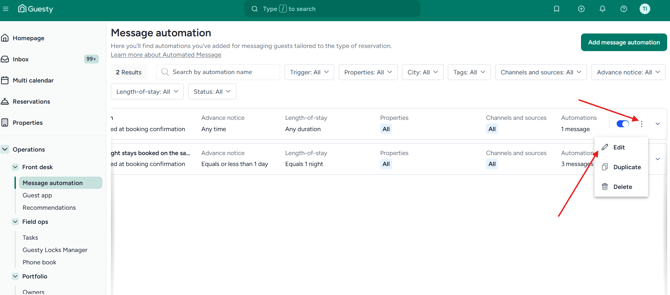
- Go to Operations → Message Automations
- Find the message you want need to change
- Click the three dots → edit
-
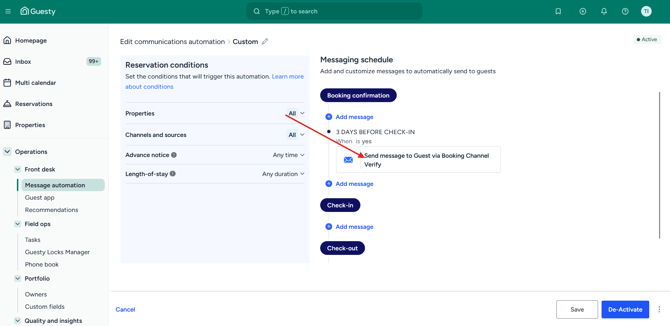
Click on the message
-
Select “+ Add Condition”
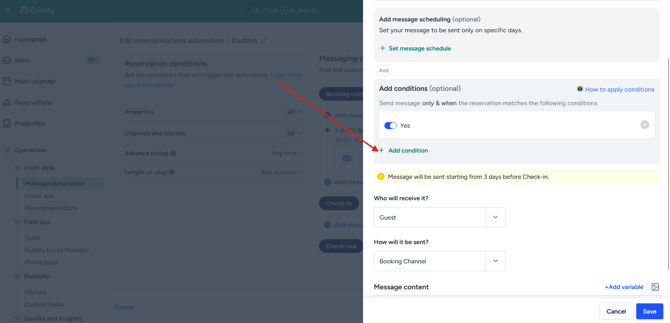
- Search for Truvi and select what you want to use to automate the message (see suggestions below)
- Make sure to remove any conditions referencing ‘Superhog’
Depending on your Truvi setup, follow the relevant scenario below:
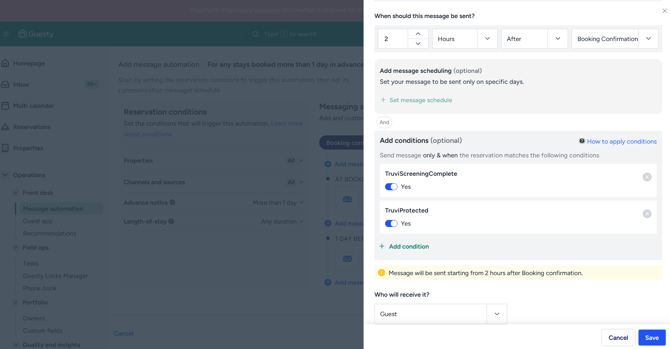
If you use both screening + protection
Send messages (e.g. check-in instructions) only when:
TruviProtected = YesTruviScreeningComplete = Yes
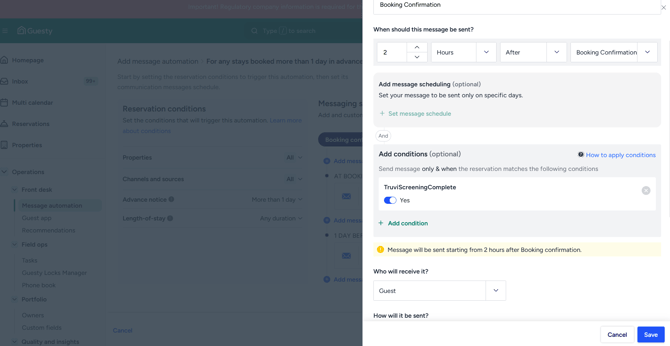
If you only use screening (no protection)
Send message (e.g. check-in instructions) when:
TruviScreeningComplete = Yes
If you want to remind guests to complete screening
Send a reminder when:
TruviScreeningComplete = No
Include the TruviVerificationURL in this message so guests can complete their verification.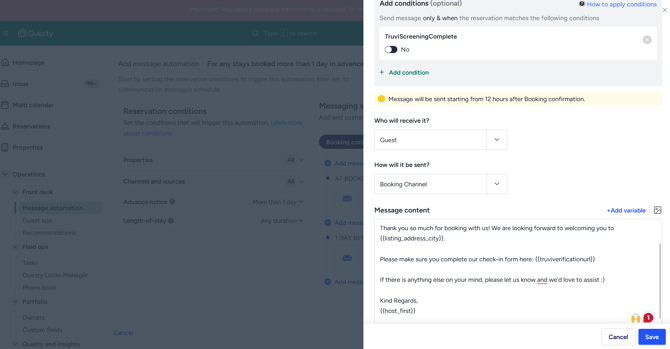
- Don't forget to save before exiting