Updating the conditions in Hostaway
- Go to your Hostaway Dashboard > Inbox > Automations
- Click ‘Create Similar’ for the message you need to update
-1.png?width=670&height=345&name=image%20(16)-1.png)
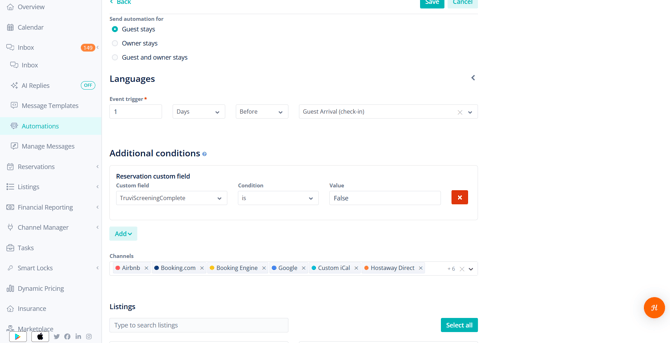
- Scroll to the ‘Additional Conditions’ section
- Add a new condition using ‘Reservation custom field’
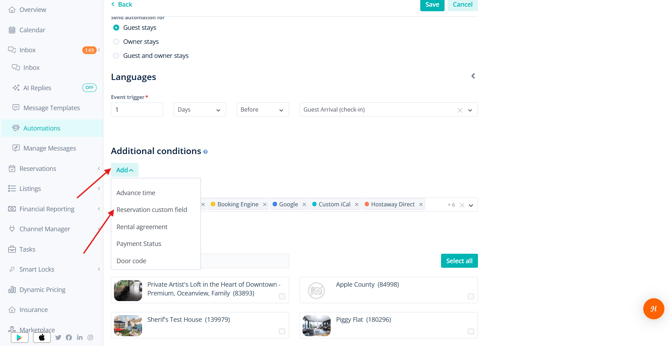
- Select the relevant conditions
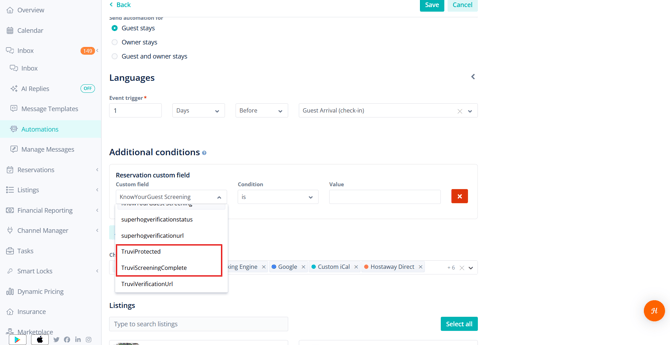
- Select True/False depending on the scenario of your message (see suggestions below)
- Once the message is updated, click ‘Save’
-
Note: Make sure to remove any conditions referencing ‘Superhog’
Depending on your Truvi setup, follow the relevant scenario below (Please note, it is up to you to decide on the conditions. This only serves as an example.)
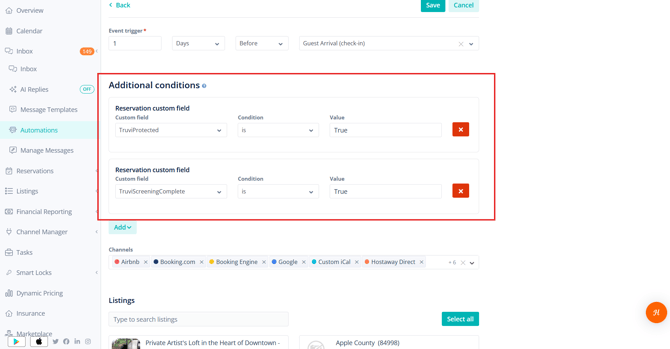
If you use both Screening + Protection
Send messages (e.g. check-in instructions) only when:
TruviProtected = trueTruviScreeningComplete = true
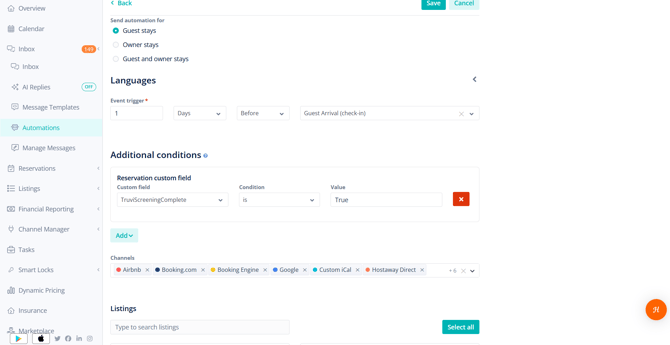
If you only use screening (no protection)
-
Send message (e.g. check-in instructions) when:
TruviScreeningComplete = true
If you want to remind guests to complete screening
-
Send a reminder when:
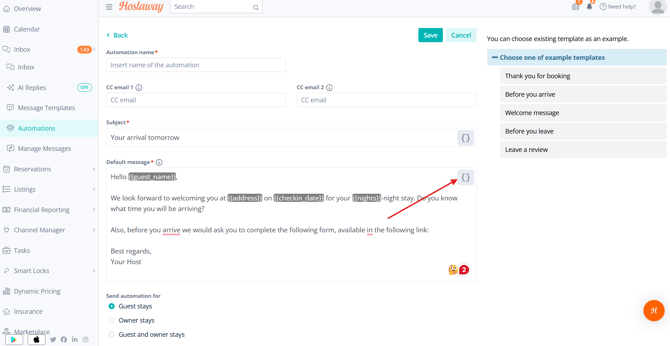
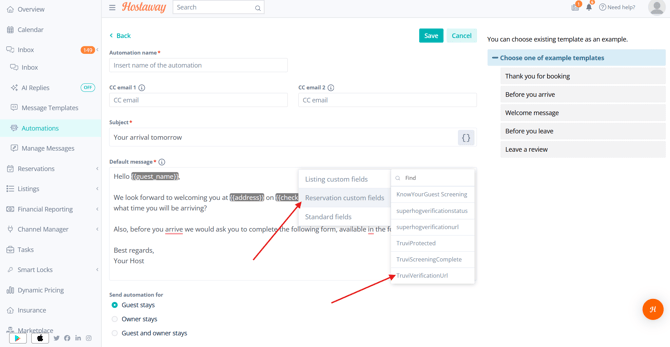
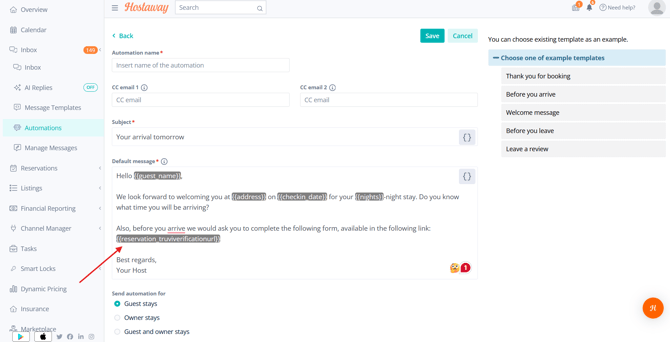
TruviScreeningComplete = false- Include the
TruviVerificationURLin this message so guests can complete their verification.