
How resolution payouts work now
From 31st March, all payouts are managed through your Truvi Wallet. Once a claim is approved in the Resolution Center, it will appear in your Wallet as Ready for Withdrawal, ready for you to request payment directly.
What you'll see in your Wallet
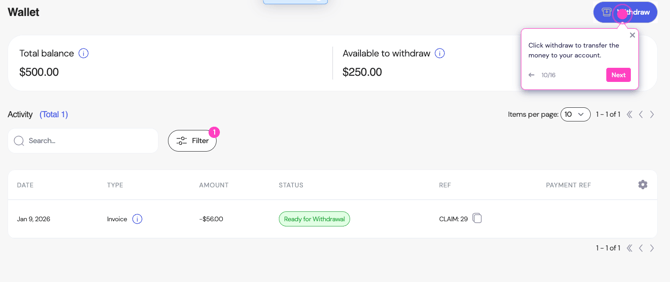
Balance summary
At the top of the Wallet you'll see two figures:
- Total balance, the full amount owed to you based on approved claims, minus any outstanding invoices
- Available balance, the amount you can currently withdraw
Note: Why are Total balance and Available to withdraw different? The Available to withdraw amount is your total balance minus any payments already in progress.
Transaction history
Below your balance is a full list of your activity:
- Resolution payouts - each approved claim from your Resolution Center appears as a line item, with its amount and current status
- Monthly invoices - your Truvi invoices appear as separate entries, showing whether they're paid or outstanding
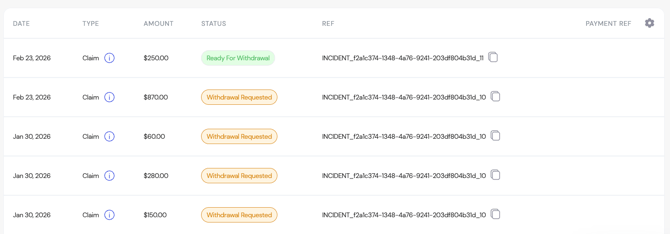
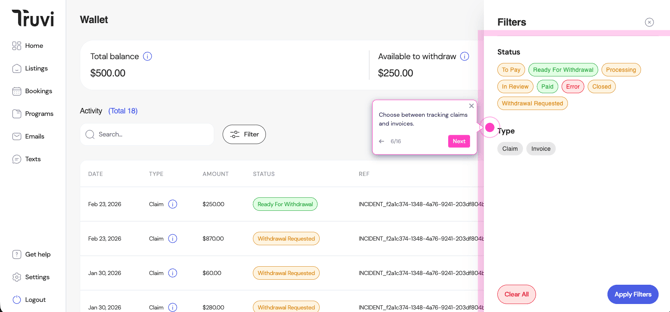
You can filter your transaction history by type (claims or invoices) and by status at any time. 👇
Setting up your payout details
Before you can withdraw funds, you need to add your bank account details. You only need to do this once.
- Go to Billing in your Truvi dashboard
- Select Damage payout and click Add bank details
- Enter your bank account information - this is handled securely through Airwallex, our payments partner
- Save your details
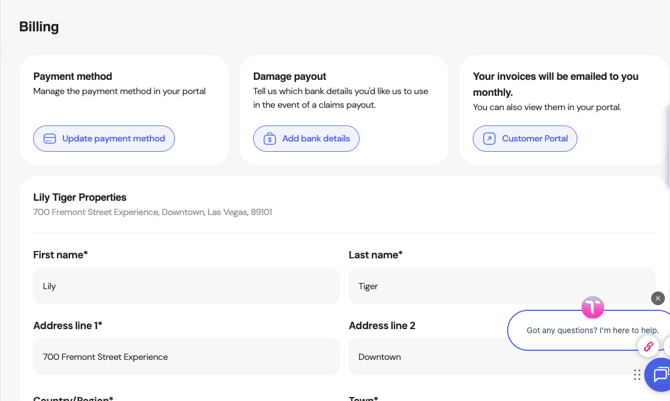
If your bank details change, you can update them from the same Billing page.
How to request a withdrawal
Once you have a positive available balance and your bank details are in place, you can request a withdrawal at any time.
- Go to Wallet in your Truvi dashboard
- Click Withdraw
- Choose to withdraw your full available balance, or select specific resolved claims
- Confirm your request
Once submitted, you'll get an email when your payment has been sent.
Note: You won't be able to withdraw if:
- Your available balance is £0 or below
- You have an outstanding invoice showing a To Pay status
To free up your balance, settle any outstanding invoices first.
Withdrawals are reviewed and approved manually before payment is processed, and will take between 3-5 business days.
Understanding your statuses
Resolution payouts
| Status | What it means |
|---|---|
| Ready for Withdrawal | Your resolved claim is approved and available to withdraw |
| Withdrawal Requested | Your withdrawal request has been submitted and is awaiting review |
| Processing / In Review | Our finance team is reviewing your request |
| Paid | Your payment has been sent to your bank account |
Invoices
| Status | What it means |
|---|---|
| To Pay | You have an outstanding invoice |
| Paid | Your invoice has been settled |
| Closed | This invoice is closed |
| Error | Something went wrong -contact our support team |
Need help?
If you have questions about your Wallet or a specific payout, get in touch with the Truvi support team.